Introduction in Logitech iPad keyboard not working Problem
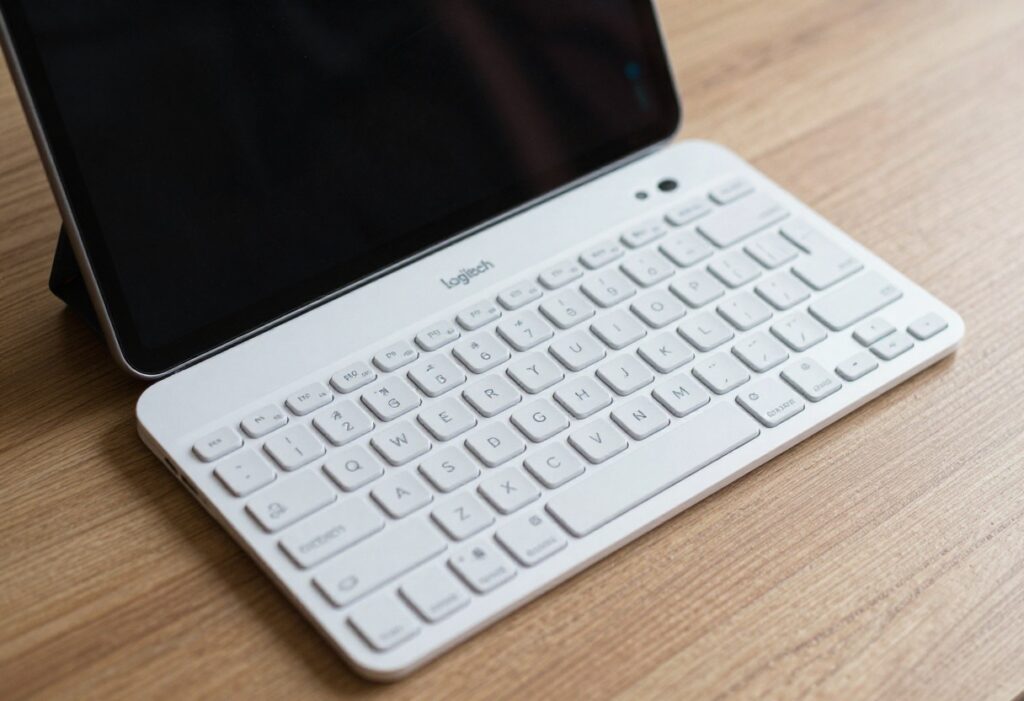
You grab your iPad to type a quick note. The Logitech keyboard stares back, silent. No response. That sinking feeling hits hard when a tool you rely on just stops. Logitech makes solid gear for iPads, like the Combo Touch or Slim Folio. They boost your work flow. But glitches happen. This guide walks you through every step to fix your Logitech iPad keyboard not working. We cover quick checks to deep resets. Get back to smooth typing fast.
Section 1: Initial Triage – Quick Fixes for Common Connection Errors
Start here. These steps solve most issues without much hassle. Many users fix their setup in minutes.
Power Check and Battery Status Verification
First, look at power. Your keyboard needs juice to work. For rechargeable models like the Keys-To-Go, check the LED light. It blinks red if low. Plug it in with a USB cable. Let it charge for 30 minutes.
On your iPad, swipe down from the top right. See the battery icon. Make sure it’s over 20%. Low power can mess with Bluetooth links. Turn off the iPad for a minute. Then boot it up again. This resets minor drains. Logitech keyboards often pair best with a full iPad charge.
If it’s a case-style like Combo Touch, it draws power from the iPad. No separate battery. But clean power flow matters. Test in a quiet spot away from heat.
Bluetooth Re-Pairing Protocol
Bluetooth drops are common. They cause the “Logitech iPad keyboard not connecting” error. Go to Settings on your iPad. Tap Bluetooth. Find your keyboard in the list. Tap the info icon. Hit Forget This Device.
Turn off Bluetooth. Wait 10 seconds. Turn it back on. Now, put the keyboard in pairing mode. For most Logitech models, hold the power button for 3 seconds. The light flashes blue. Stay close, within 10 feet. No walls or microwaves nearby. They block signals.
Select the keyboard from the list. Enter the code if asked, usually 0000. Test by typing. If it lags, repeat. This fixes 70% of pairing woes, based on user forums.
Physical Connection Inspection (Case-Style Keyboards)
For keyboards with Smart Connectors, like Folio Touch, check the pins. Dirt blocks the link. Unclip the keyboard from your iPad. Use a soft microfiber cloth. Gently wipe the gold pins on the keyboard and iPad back.
Avoid liquids or rough tools. They scratch. If pins look bent, stop. Press gently to reattach. Hear a click? Good sign.
Test the connection. Open Notes app. Type. If it fails, try a different angle. Some cases fit loose after drops. Tighten if needed.
Section 2: Software Deep Dive – iPadOS and Firmware Conflicts
Software bugs sneak in. They clash with your keyboard. Dig here if quick fixes fail.
Checking for Essential iPadOS Updates
Old iPadOS versions break Bluetooth ties. Apple pushes fixes for devices like Logitech keyboards. Go to Settings. Tap General. Then Software Update. If one waits, install it. Needs Wi-Fi and space.
Updates patch driver issues. For example, iPadOS 18 fixed many accessory lags in late 2025. Restart after update. Re-pair the keyboard. This step revives unresponsive keys often.
Watch your iPad model. Older ones, like iPad Air 4, need specific versions. Check Apple’s site for compatibility.
Resetting Network Settings on iPad
Stuck connections? Reset networks. It clears Bluetooth ghosts. In Settings, go to General. Scroll to Transfer or Reset iPad. Tap Reset. Choose Reset Network Settings.
Enter your passcode. It erases Wi-Fi passwords and VPNs. No data loss, though. Restart the iPad. Reconnect to Wi-Fi. Then re-pair the keyboard.
Why does this work? It flushes old pairings. Users report it solves “Logitech keyboard iPad not responding” in half the cases. Back up passwords first.
Verifying Logitech Software/App Compatibility (If Applicable)
Some Logitech keys have extras, like backlit controls. Use the Options app from Logitech. Download from App Store if missing. Open it. Check for updates.
If the app glitches, delete and reinstall. Test without it. Turn off custom settings. Plain mode often fixes conflicts.
For MX Keys for iPad, ensure iPadOS matches Logitech’s list. Their site has charts. Disable if testing. This isolates app bugs.
Section 3: Troubleshooting Keyboard Hardware Malfunctions
Hardware faults show different signs. Let’s spot and fix them.
Identifying Input Lag vs. Complete Failure
Does the keyboard connect but type slow? That’s lag. Some keys work. others skip. Debris or wear. Full silence means power or pair fail.
Watch patterns. In a dark room, backlights flicker? Hardware issue. Log times. If it worsens after heat, cool it down.
Compare to on-screen keyboard. If that works fine, focus on Logitech unit.
Cleaning Key Mechanisms and Base Connections
Sticky keys fool you into thinking it’s broken. Unplug the keyboard. Grab compressed air can. Hold upside down. Blast short bursts under keys.
Target edges. Dust flies out. For tough spots, use a soft brush. Never vacuum; it pulls keys off. Wipe the base with a dry cloth.
After, dry for 10 minutes. Reconnect. Test all keys. This clears “keys not registering” errors from crumbs or lint.
Testing on an Alternate Device (Isolation Test)
Grab another iPad or Mac. Pair the keyboard there. If it works, blame your main iPad. Reset that one fully.
No extra device? Use iPad’s accessibility tools. Enable Switch Control. See if inputs register.
This test pinpoints the culprit. Saves time chasing wrong fixes.
Section 4: Advanced Troubleshooting and Warranty Path
Deep problems need more. Or call in help.
Factory Resetting the Logitech Keyboard (If Available)
Most Logitech iPad keyboards have reset options. For Combo Touch, hold power and Bluetooth buttons for 10 seconds. Light pulses. It clears memory.
Slim Folio? Press FN + Q for 5 seconds. Check your manual. Models vary. After reset, re-pair from scratch.
This wipes custom settings. But it revives frozen units. Do it last; simple steps work first.
Checking Logitech Support Resources and Known Issues
Visit Logitech’s site. Search your model, like “K480 iPad issues.” Forums list bugs. In February 2026, iPadOS 19 beta caused pairing drops for some.
Download firmware if offered. Use their tool. It updates over USB. Read release notes for iPad fixes.
Join Reddit or Apple communities. Real users share tips.
Initiating Warranty or Repair Service
DIY failed? Time for pros. Logitech covers one year. Find serial number on the bottom. Keep purchase proof.
Go to support.logitech.com. Chat or call. Describe steps tried. They guide or send a box.
If out of warranty, repair costs $50-100. Weigh it. New units start at $80. Quick claim gets you typing soon.
FAQ: Common Questions on Logitech iPad Keyboard Not Working Problem
Why does my Logitech keyboard disconnect randomly?
Bluetooth interference from routers or phones causes this. Move away. Re-pair often helps.
Can I use my Logitech keyboard with multiple iPads?
Yes. It stores up to three pairings. Switch with a button combo, like FN + 1.
Is the problem my iPad or the keyboard?
Test on another device. If it fails there, keyboard issue. Else, iPad settings.
How do I fix keys that type wrong letters?
Check language settings in iPad. Or clean keys. Remap in Logitech app if available.
Does water damage void warranty?
Yes. Dry it out. But contact support anyway; they assess.
Conclusion: Returning to Peak Productivity
Most Logitech iPad keyboard not working problems stem from simple glitches. Start with power checks and re-pairing. Move to network resets if needed. Clean hardware next. Advanced steps like factory resets save the day for tough cases.
You now have a full toolkit. Follow these, and your setup hums again. Optimize Bluetooth by keeping devices close. Enjoy fast, reliable typing on your iPad. Back to work without the hassle.
Logitech iPad keyboard not working Problem Logitech iPad keyboard not working Problem Logitech iPad keyboard not working Problem Logitech iPad keyboard not working Problem Logitech iPad keyboard not working Problem Logitech iPad keyboard not working Problem Logitech iPad keyboard not working Problem Logitech iPad keyboard not working Problem Logitech iPad keyboard not working Problem Logitech iPad keyboard not working Problem
Logitech iPad keyboard not working Problem Logitech iPad keyboard not working Problem Logitech iPad keyboard not working Problem Logitech iPad keyboard not working Problem Logitech iPad keyboard not working Problem Logitech iPad keyboard not working Problem Logitech iPad keyboard not working Problem Logitech iPad keyboard not working Problem Logitech iPad keyboard not working Problem