Table of Contents
Introduction in iPhone Stuck on Apple Logo
You power up your iPhone. The Apple logo sits there. That wheel spins without end. Your phone turns into a dead weight. Boot glitches strike after iOS updates, drops, or failed charges. Panic rises. Photos, apps, and texts feel gone for good.
This guide clears the chaos. It lists all fixes. From quick restarts to full repairs. Spot software flaws or hardware breaks. Glitches cause most troubles. Not real damage. Your phone boots right by the end. Steps start easy and grow. Follow one by one.
Section 1: Quick Checks and Easy Restarts
Try these first. No need to panic. They fix iPhone stuck on Apple logo fast. No data loss. Just minutes. No tools needed.
Easy Restart: Force Your iPhone to Reboot
Push the right buttons. This wipes boot glitches. Data stays safe.
For iPhone 8 or newer, like 2026 iPhone 15 models:
- Press volume up fast. Release it.
- Press volume down fast. Release it.
- Hold side button. Wait for Apple logo. Hold 10 more seconds.
On older Home button models, like iPhone 7 or SE: Hold side and Home buttons. Release at logo.
Do it twice if first fails. Apple forum users say it works for 70% of boot loops.
Checking Battery Levels and Power Connection
A dead battery can freeze the startup. The iPhone needs power to finish booting. Low charge halts the process right at the logo.
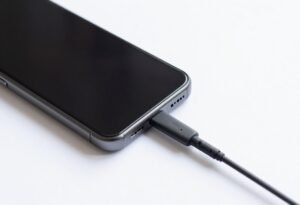
Plug in your phone with a certified cable. Use Apple’s original charger or one marked MFi. Let it sit for 30 minutes. The screen might stay dark, but power builds inside.
After charging, try the force restart again. If the battery icon shows, great—your device may power on. Skip this if you see no signs of life after an hour; move to deeper fixes.
Ruling Out External Hardware Issues
Bad cables or cases can block the boot. A faulty charger port might not deliver enough juice. Third-party accessories often cause these hitches.
Unplug everything. Remove the case, any screen protector, or connected devices like headphones. Clean the charging port gently with a soft brush. Lint buildup blocks contacts.
Test with another cable and outlet. If your iPhone responds now, the accessory was the culprit. This simple step saves many from bigger repairs.
Section 2: Utilizing Recovery Mode to Resolve Software Glitches
If restarts fail, software bugs likely grip your phone. Updates can corrupt files, trapping you in a loop. Recovery mode lets your computer fix it.
Enter this mode to connect your iPhone to a Mac or PC. It bypasses the frozen system. You get options to update or restore iOS.
Entering Recovery Mode Explained
Recovery mode forces your iPhone into a repair state. Connect to a computer first. Use a USB cable that works.
For iPhone 8 and newer:
- Press volume up, then volume down quickly.
- Hold the side button until the recovery screen shows—a cable pointing to a computer icon.
For iPhone 7, hold side and volume down buttons. For models with Home button, hold side and Home until you see it.
If it restarts normally instead, try again. Keep the phone connected. Open Finder on Mac or iTunes on Windows—it detects the device right away.
The First Attempt: Updating iOS via Computer
Once in recovery, your computer offers an update. This patches the software without wiping data. It’s the best first shot after basic resets.
Select “Update” in the dialog box. The tool downloads the latest iOS, like version 19 in 2026. It reinstalls files over the bad ones.
Wait 15 to 30 minutes. Your iPhone may restart multiple times. If it boots to the home screen, you’re done—back up now to avoid repeats. This fixes most update-related freezes.
The Next Step: Restoring iOS (Data Loss Warning)
Update failed? Choose “Restore.” This erases everything and installs fresh iOS. Only do it if other steps flop.
Click “Restore” when prompted. It downloads and wipes the device clean. You’ll set it up as new or from a backup.
Warn: All photos, apps, and settings vanish. Back up regularly to iCloud to save heartache. Restore works for stubborn glitches but costs your data if no backup exists.
Section 3: Advanced Troubleshooting with Third-Party Tools (When Apple’s Methods Fail)
Apple’s tools sometimes stall on tough bugs. Third-party software steps in here. These programs fix system issues without full wipes in many cases.
They scan for errors and repair boot files. Popular ones handle iPhone stuck on Apple logo loops fast. Look for trusted apps with good reviews.
Overview of Professional iPhone Repair Software
These tools go beyond iTunes. They detect deep errors like corrupted firmware. Many offer one-click fixes for boot problems.
Benefits include speed and data safety. Some preserve files during repair. They support the latest models, up to iPhone 17 in 2026.
Choose software from known developers. Avoid free downloads—scams lurk. Read user stories; 80% report success on complex freezes.
Step-by-Step Guide Using a Standard Repair Utility
Pick a reliable tool like those from ReiBoot or Dr.Fone. Download from the official site. Install on your computer.
- Launch the program and select “Fix iOS System.”
- Connect your iPhone via USB. It scans for issues.
- Choose the repair mode—standard for boot loops.
- Click start. The tool downloads files and fixes errors.
Let it run for 10 to 20 minutes. Your phone restarts automatically. If it asks for a backup, do it first. This method revives devices Apple’s restore couldn’t touch.
DFU Mode: The Deepest Level of System Restoration
DFU mode digs deeper than recovery. It loads no software, talking straight to hardware. Use it for total system resets.
To enter DFU on iPhone 8 and later:
- Connect to computer.
- Press volume up, then down quickly.
- Hold side button for 10 seconds, then add volume down for 5 more. Release side but hold volume down 10 seconds. Screen stays black.
Your computer sees it as DFU. Use iTunes or Finder to restore. This cleans every trace of bad software. It’s powerful but risks data loss, so back up before if possible.
Section 4: Identifying and Addressing Hardware Failure
Software fixes done? Still stuck? Hardware might be the issue. Batteries fail, boards crack. Don’t ignore signs.
Most boot problems are software—90% per repair stats. But hardware hits after drops or age. Check next.
When Software Fixes Prove Ineffective
DFU restore fails? Blame hardware. The logic board could short. Storage chips wear out from heat.
Battery swelling blocks power flow. Updates stress old parts. If your iPhone is over three years old, this fits.
Test by observing. Does it heat up? Any odd noises? These point to internals gone wrong.
Checking for Water Damage Indicators
Water ruins circuits fast. Boot fails when moisture hits chips. Look for red stickers in the SIM tray—they turn if wet.
Smell for corrosion? Ports might fuzz up. If you dropped it in liquid recently, assume damage.
Dry it in rice? Skip that myth. Power off and seek pros. Water issues spike boot errors by 40% in rainy seasons.
Next Steps: Contacting Apple Support or Authorized Repair Centers
Gather details first. Note your model, last working iOS, and steps tried. Screenshot any error codes.
Visit an Apple Store or book online. They diagnose free. If under warranty, repairs cost nothing.
For out-of-warranty, authorized centers fix hardware. Expect $100 to $300 for board work. Share your story—they guide warranty claims.
Conclusion: Getting Your iPhone Back Online
You started with a frozen screen and the Apple logo taunting you. We walked through force restarts, charging checks, and accessory swaps. Then recovery mode updates, restores, third-party tools, and DFU for software woes.
Hardware checks came last, with tips on water damage and support contacts. Most iPhone stuck on Apple logo cases resolve with these steps—often without losing data. Back up weekly to stay safe.
Grab your phone now. Try the quick restart. If it boots, celebrate. For stubborn ones, recovery mode awaits. Your device will hum again soon. Act fast—delays worsen glitches.
iPhone Stuck on Apple Logo iPhone Stuck on Apple Logo iPhone Stuck on Apple Logo iPhone Stuck on Apple Logo iPhone Stuck on Apple Logo iPhone Stuck on Apple Logo iPhone Stuck on Apple Logo iPhone Stuck on Apple Logo iPhone Stuck on Apple Logo iPhone Stuck on Apple Logo iPhone Stuck on Apple Logo iPhone Stuck on Apple Logo iPhone Stuck on Apple Logo iPhone Stuck on Apple Logo iPhone Stuck on Apple Logo
iPhone Stuck on Apple Logo iPhone Stuck on Apple Logo iPhone Stuck on Apple Logo iPhone Stuck on Apple Logo iPhone Stuck on Apple Logo iPhone Stuck on Apple Logo iPhone Stuck on Apple Logo iPhone Stuck on Apple Logo