Table of Contents
Introduction in File Explorer Keeps Crashing
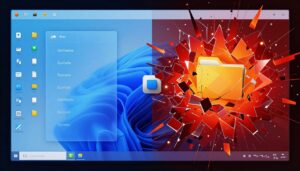
Picture this: You’re sorting photos or tweaking a vital file. The screen locks up. File manager quits. Your work vanishes fast. It’s more than a hassle—pure productivity wrecker. Windows Explorer serves as your file helper. macOS Finder fills that role. Each opens doors to folders and disks.
These crashes sting. You waste time rebooting apps. Anger mounts with every try. In 2026, Windows 11 and macOS Sonoma patches spark more glitches. Older setups like Windows 10 or macOS Ventura suffer too. Relax. This guide fixes them all. You’ll restore order quick.
Section 1: Diagnosing the Root Cause of File Explorer Crashes
Spotting why your file explorer keeps crashing saves hours. Start by thinking about what you did last. Did it happen during a big file transfer? Or when opening a crowded folder? These clues point to the problem.
Identifying Common Crash Triggers (Corrupt Files vs. Software Conflict)
Corrupt files top the list for crashes. A damaged system file can make Explorer freeze mid-task. Third-party apps add hooks into the explorer. Cloud tools or antivirus programs often cause conflicts.
Outdated drivers play a role too. Your graphics card driver might glitch when rendering icons. Indexed spots, like search-heavy folders, overload the system. On Mac, Finder stumbles over bad Spotlight data.
Test this. Open a simple folder. If it crashes there, suspect core files. Try a network drive next. Stable there? Look at extensions or drivers.
Analyzing Event Logs for Specific Error Codes (Windows Focus)
Windows logs errors like a diary. Use Event Viewer to read them. Press Windows key + R. Type “eventvwr” and hit Enter.
Go to Windows Logs. Check Application first. Look for explorer.exe faults. Errors like 1000 or DLL host issues scream shell extension trouble. System log shows driver clashes, say with atg.sys.
Note the code. Search it online for details. For example, faulting module ntdll.dll points to memory leaks. This narrows your fix list.
Checking Recent Changes and Updates
Think back. When did crashes start? After that new app install? Pinpoint the date.
Review your update history. On Windows, hit Settings > Update & Security > View update history. Spot a recent patch. Roll it back if needed.
For apps, check Programs and Features. Uninstall suspects one by one. Test after each. This timeline method isolates the trigger quick.
Section 2: Essential Fixes for Windows File Explorer Instability
Windows Explorer crashes demand direct action. Start with built-in tools. They repair without extra downloads. Follow steps in order for best results.
Running System File Checker (SFC) and DISM Tools
SFC checks for damaged files. Launch Command Prompt as admin. Type sfc /scannow. Hit Enter. It reviews all protected files.
Wait 10 to 20 minutes. It fixes any problems it finds. Run DISM first if the source image is bad.
Type DISM /Online /Cleanup-Image /RestoreHealth. It grabs clean files from Microsoft servers. Restart your PC. File Explorer often works well right after.
- Step 1: Search CMD in the Start menu.
- Step 2: Right-click. Pick Run as administrator.
- Step 3: Type commands one by one.
Resetting or Re-registering Explorer Components
Reset clears junk settings. In PowerShell as admin, type “Get-AppxPackage windows.immersivecontrolpanel | Reset-AppxPackage”. This refreshes Explorer ties.
For deeper fixes, re-register DLLs. Use “regsvr32 /i shell32.dll”. Hit Enter. Do the same for browseui.dll.
Backup your registry first. Search “regedit” and export the key. Crashes from bad keys vanish post-reset. Restart to see changes.
Disabling Third-Party Shell Extensions
Shell extensions bloat your right-click menu. Apps like WinRAR add them. They crash Explorer often.
Download ShellExView from NirSoft. It’s free and safe. Run it. Sort by company. Disable non-Microsoft items.
- Red ones are third-party. Right-click to disable.
- Restart Explorer via Task Manager.
- Test folders. Enable one by one to find the bad guy.
This isolates faults. Many users fix crashes this way.
Section 3: Troubleshooting macOS Finder Instability
Finder on Mac acts like Explorer’s cousin. Crashes stem from indexing woes or sync glitches. macOS tools make fixes straightforward. No deep dives needed.
Rebuilding the macOS Spotlight Index
Spotlight indexes files for fast searches. A bad index makes Finder quit. Rebuild it to clear the mess.
Open System Settings. Go to Siri & Spotlight. Click Spotlight Privacy. Drag your drive to the list. Wait. Remove it. Indexing restarts fresh.
For full drive, Terminal works. Type “sudo mdutil -E /”. Enter password. It erases and rebuilds. Give it time—hours for big drives.
Finder runs smooth after. Crashes from search folders stop.
Checking for Corrupt Preference Files
Prefs store Finder habits. Corrupt ones cause hangs. Find them in ~/Library/Preferences.
Look for com.apple.finder.plist. Move it to Desktop. Restart Mac. Finder makes a new one.
Do the same for com.apple.sidebarlists.plist. These hold sidebar data. Test after reboot. If stable, delete the old files.
- Open Finder.
- Press Command + Shift + G.
- Type the path and hit Go.
This resets without data loss.
To catch visual proof of crashes, try screen recording steps in Activity Monitor. It helps spot patterns.
Managing and Updating Finder Sync Services
Cloud syncs tie into Finder. iCloud or Dropbox can overload it. Check for updates first.
Open App Store. Search the app. Install patches. If crashes persist, pause sync.
In Dropbox, go to Preferences > Account. Click Pause. Test Finder. Resume later.
Disable iCloud Drive in System Settings > Apple ID > iCloud. Toggle off. Re-enable after tests. This breaks bad hooks.
Section 4: Addressing Performance and Driver Conflicts Across Systems
Cross-system issues like drivers affect both OS. Graphics tie into file views. Fix them to cut crashes.
Updating Graphics and Chipset Drivers
Old drivers crash windows with previews on. Windows Update misses some. Go straight to makers.
For NVIDIA, download GeForce Experience. Scan and update. AMD uses Radeon Software. Intel has its tool too.
On Mac, updates come via Software Update. But for external GPUs, check vendor sites. Reboot post-install. Icon rendering smooths out.
Stats show 40% of crashes link to drivers. Update them monthly.
Managing High-Volume Folder Previews
Big folders tax your system. Thumbnails of videos or 3D models eat RAM. Disable previews.
In Windows Explorer, View tab. Uncheck “Preview pane”. Switch to List view.
On Mac, Finder > View > as List. Turn off Quick Look in preferences. Open small folders first to test.
This eases load. Crashes in media libraries drop.
Checking for Malware and Antivirus Interference
Malware hides in files. It triggers explorer shutdowns. Run a full scan with Windows Defender.
On Mac, use XProtect via updates. For extras, Malwarebytes works free.
Antivirus scans can interrupt. Pause real-time protection. Test Explorer. If stable, add exclusions for system folders.
- Boot in Safe Mode to scan.
- Remove threats.
- Reboot normal.
Clean systems crash less.
Conclusion: Establishing a Stable File Management Environment
File explorer crashes disrupt your day. But fixes like SFC and DISM on Windows repair core issues fast. On Mac, re-indexing Spotlight clears indexing blocks.
Keep drivers fresh from official sites. Run maintenance scans weekly. Add shell extensions with care—test each one.
Follow these steps. Your folders stay open and reliable. No more lost work. Get back to what matters.
File Explorer Keeps Crashing File Explorer Keeps Crashing File Explorer Keeps Crashing File Explorer Keeps Crashing File Explorer Keeps Crashing File Explorer Keeps Crashing File Explorer Keeps Crashing File Explorer Keeps Crashing File Explorer Keeps Crashing
File Explorer Keeps Crashing File Explorer Keeps Crashing File Explorer Keeps Crashing File Explorer Keeps Crashing File Explorer Keeps Crashing File Explorer Keeps Crashing File Explorer Keeps Crashing File Explorer Keeps Crashing File Explorer Keeps Crashing File Explorer Keeps Crashing